Gamma Horizon #
~.Dimensions.~ supports and integration with Gamma Horizon based on call recording downloads. This allows for call recording data to be added to ~.Dimensions.~ and call data modelled for transcription and Conversational Intelligence.
This page outlines the requirements and setup process for configure ~.Dimensions.~ to connect to a Gamma Horizon system.
Requirements #
The following requirements must be met in order to connect ~.Dimensions.~ to a Gamma Horizon installation.
| Requirement | Description | Usage |
|---|---|---|
| Horizon Portal User Account https://www.unlimitedhorizon.co.uk/ |
A user account on the horizon portal with permissions to access the 'Users' tab. | Keeps track of user changes on the system to ensure that user information is up to date in ~.Dimensions.~ |
| Recording Portal User Account https://advancedcomms.co.uk/ |
A user account on the call recording portal with permissions to download call recordings. | Allows ~.Dimensions.~ to download call recordings for transcription and CI modelling. |
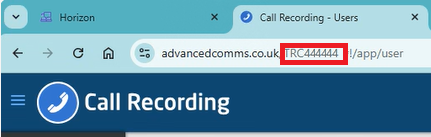
| Recording Portal Customer Id | It can be found in the https://advancedcomms.co.uk/ URL. E.g. https://advancedcomms.co.uk/XXXXXXX?l=1#!/login/signin. The ID is the portion of the URL after the final forward slash and before the question mark. | User as part of the recording portal authentication. |
tip
After configuring a Horizon connection, a Recording Storage retention profile must be configured to control how long the call recordings should be stored after they have been downloaded. Please refer to the Recording Storage Profiles documentation for more information.
warning
~.Dimensions.~ will change the passwords on these accounts on a regular basis to ensure they do not expire. Do not use these accounts for other purposes as the password changes will cause disruption to any other processes using the accounts.
Horizon Portal Usage Details
~.Dimensions.~ uses the Horizon portal to import the customer's users and keep them up to date. This minimises the amount of configuration required when setting up a new customer and ensures that user information is always up to date in ~.Dimensions.~ without requiring manual intervention.
To create a user account, login to your Horizon reseller portal and navigate the customer account. In the 'Manage Administrators' section, create a new user account using the 'Add New Admin' section.
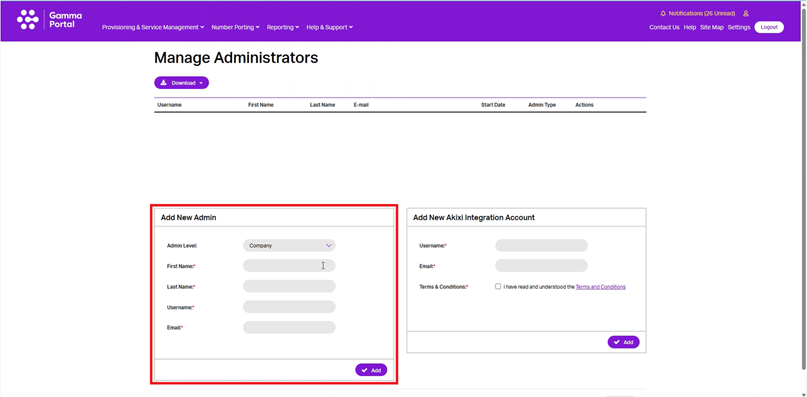
~.Dimensions.~ will import the users when the connection is first added, then check on a 3 hourly basis for any changes to the users on the system. If any changes are detected, the user information in ~.Dimensions.~ will be updated to reflect the changes.
warning
The user account must be a dedicated account for use by ~.Dimensions.~.
info
The password on the portal will automatically be updated every 30 days by ~.Dimensions.~. This is to ensure that the password does not expire and cause disruption to the connection.
Recording Portal Usage Details
~.Dimensions.~ uses the recording portal to download the call recordings from Horizon.
~.Dimensions.~ will import the recordings for the selected when the connection is first added, then check every 15 minutes for new recordings.
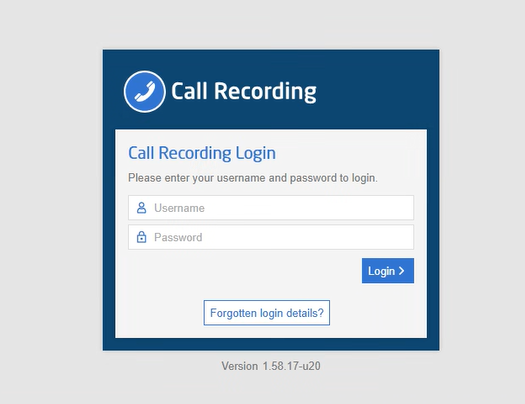
To create a user account, login to the advanced recording portal.
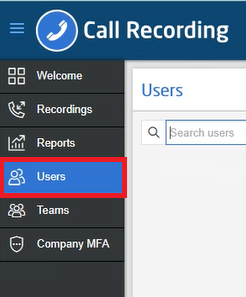
Navigate to the 'Users' section.
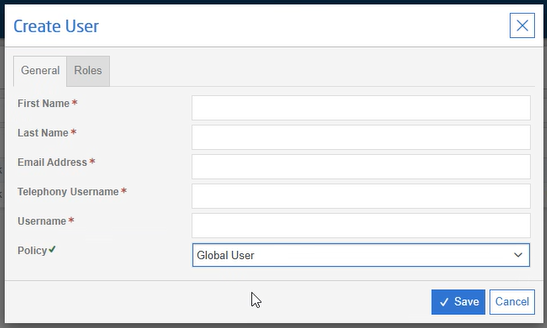
Populate the 'Create User' form with the details for the new user.
Also make a note of the 'Customer ID' while in the recording portal.
warning
The user account must be a dedicated account for use by ~.Dimensions.~.
tip
~.Dimensions.~ will only download recordings for those users configured in the Conversational Intelligence section.
info
The password on the portal will automatically be updated every 30 days by ~.Dimensions.~. This is to ensure that the password does not expire and cause disruption to the connection.
Setup #
To add a Gamma Horizon system to ~.Dimensions.~, on the 'Phone system \ Connections ' page of the Customer, press the 'Create a new PBX' button. Select 'Gamma Horizon' from the list of PBXs and then populate the following fields:
| Field | Description |
|---|---|
| Name | A name to identify this system in the UI (More than 1 connection can be added for a customer if they have multiple PBXs |
| Recording Portal Customer Id | The customer ID for this system. This is required as part of the authentication process with the recording portal. |
| Recording Portal Username | The username for the call recording portal user account. |
| Recording Portal Password | The password for the call recording portal user account. |
| Horizon Portal Username | The username for the Horizon portal user account. |
| Horizon Portal Password | The password for the Horizon portal user account. |
Once the properties have been added, press 'Save' to add the connection.